Watch. Listen. Read.
Watch the full video tour, or listen to an individual chapter with its transcript. Choose how you want to use the guide.
The full video
All 46 chapters in one continuous narrated video.
Listen to & read a chapter
Choose a chapter and listen to its individual narration. The full chapter transcript is directly below; you do not need to play the video.
Meet DinoX
Start here
This chapter’s audio
Chapter transcript
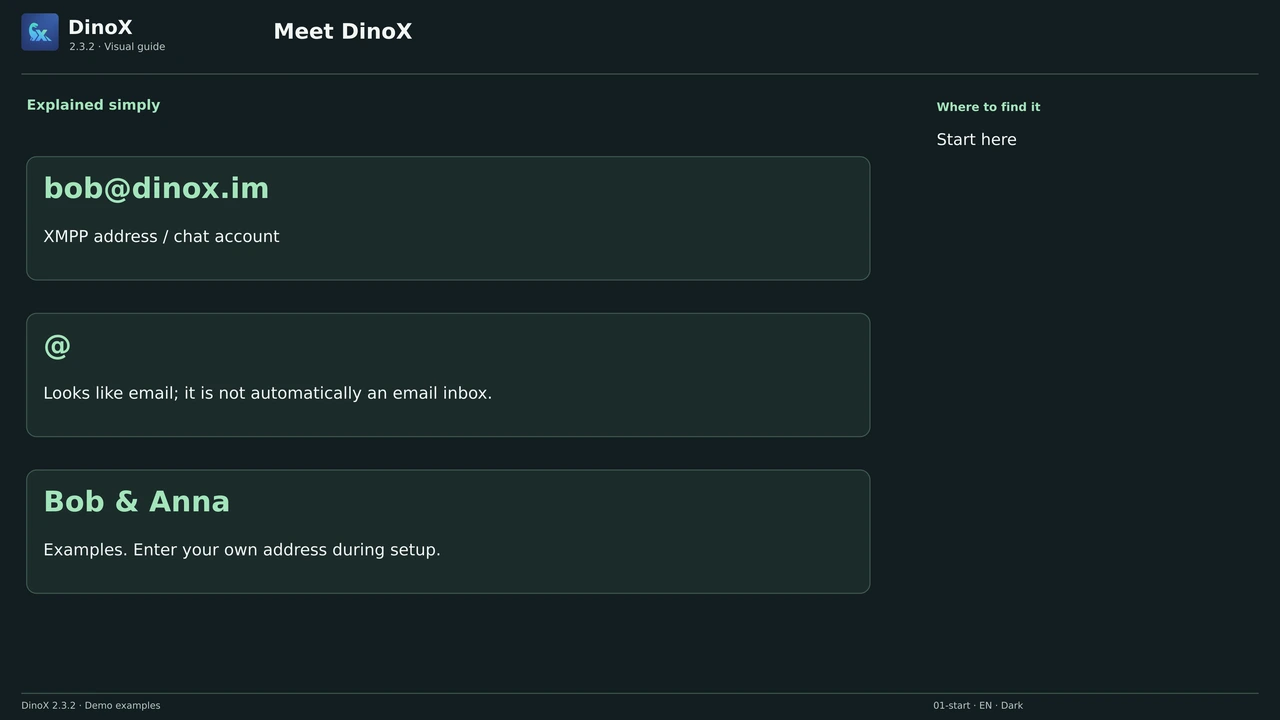
Welcome to DinoX. You can exchange messages, pictures and files, and make audio or video calls. You need an XMPP account. Its address is also called a JID. Bob at dinox dot im looks like an email address, but here it is a chat address. It does not automatically include an email inbox. Enter your own XMPP address when setting up DinoX. Bob and Anna are examples in this guide.
All chapters with audio
Open the full picture gallery →All chapter transcripts
Meet DinoX
Welcome to DinoX. You can exchange messages, pictures and files, and make audio or video calls. You need an XMPP account. Its address is also called a JID. Bob at dinox dot im looks like an email address, but here it is a chat address. It does not automatically include an email inbox. Enter your own XMPP address when setting up DinoX. Bob and Anna are examples in this guide.
Deutsch · MP3English · MP3Install the right package
Choose the package for your system. The provided Ubuntu DEB is not intended for Debian 13. Use AppImage or Flatpak there. Both formats also work independently of RPM packaging, for example on Fedora or openSUSE. Flatpak must be installed and needs an additional runtime. An AppImage must be allowed to run as a program. Still check processor architecture and system requirements. On Windows, use the Windows package.
Deutsch · MP3English · MP3Understand the two passwords
On first launch, set the password for the data on this computer. Enter it twice and keep it safe. It is not your chat account password. Be careful: three incorrect entries during normal unlocking can trigger the security wipe. Do not keep guessing. Special restore cases are explained in the written chapter.
Deutsch · MP3English · MP3Choose or create an account
Already have an XMPP address? Choose “Sign in”. If not, choose “Create account” and select a provider. You do not need to follow both routes.
Deutsch · MP3English · MP3Create an account with a provider
The provider operates your account’s server. It manages sign-in, availability and possibly message history. Choose a provider whose terms and service suit you. The list in DinoX is a selection, not a guarantee of free or permanently available registration.
Deutsch · MP3English · MP3Advanced sign-in: server and proxy
For normal sign-in you usually do not need to enter anything here. DinoX finds the server from your XMPP address. A proxy is an additional intermediary for the connection; it is not your XMPP provider.
Deutsch · MP3English · MP3Add a person and open the chat
Select the single-person icon at the top, then Add Contact at the bottom. Enter the full address, here anna at dinox dot im. An alias is only your own display name for this contact. If you have several accounts, choose the correct one first. Sharing online status lets the person see your availability. Add saves the contact.
Deutsch · MP3English · MP3Find an address in a server directory
This is not a worldwide people search. It works only if your server offers a searchable directory and your account is connected. The server controls the available fields and results.
Deutsch · MP3English · MP3What does a contact request mean?
A contact request asks permission to see your online status. It does not decide message encryption. Check the address and accept according to the access you want to grant. You can separately choose whether the chat uses OMEMO, OpenPGP or no end-to-end encryption.
Deutsch · MP3English · MP3The lock and the three message modes
The lock shows this chat’s setting. Select it to open the choices. Message encryption is separate from the secure connection to your server. The devices involved must also support the selected method.
Deutsch · MP3English · MP3OMEMO: inspect devices and verify keys
A contact may use several devices, each with its own key. Accepted or Trusted means DinoX may use that key. Verified additionally means you deliberately checked its fingerprint. A green symbol alone does not replace that comparison.
Deutsch · MP3English · MP3Work with messages
Actions depend on whether the message is yours, its type and support at the other client. Open actions on the message you want to work with.
Deutsch · MP3English · MP3Set up notifications and sounds
Preferences, General contains notifications and a separate message-sound option. If notifications are globally disabled, enabling the chat bell will not override that. Also check your operating system’s notification permissions and do-not-disturb mode. Completely quitting DinoX stops ongoing alerts. Minimizing to the system tray can instead leave DinoX running.
Deutsch · MP3English · MP3Organise, mute and remove contacts
The bell at the top controls alerts for this particular chat. Muting suppresses alerts while messages still arrive. It does not block the contact. To block or remove a contact, open conversation details or the contact menu. These actions have different effects, explained separately in the written guide.
Deutsch · MP3English · MP3Find saved groups and server rooms
The group icon opens your saved groups. Search for a name such as Treff in the search field. This first list contains your saved groups, not every group worldwide. If you know the full room address, you can enter it directly. The magnifying glass opens the server’s room directory.
Deutsch · MP3English · MP3Find rooms on your account’s server
In Browse Rooms, leave public search switched off first. DinoX queries rooms advertised by your account’s group service. This is a server query, not merely a search on your computer. Hidden and private rooms may be absent. Choose a suitable room and complete joining with your nickname.
Deutsch · MP3English · MP3Search public groups across servers
Enable public search and enter at least two characters, such as a topic. DinoX queries the external search.jabber.network service, which receives your search term. It finds public rooms in that service’s index; despite the switch label, it is not a complete list of all XMPP servers.
Deutsch · MP3English · MP3Join or create a group
A group has its own address, for example treff@gruppen.dinox.im. Ask for the complete room address and any password. The part after @ may differ from your account address. Public rooms and private groups have different access rules.
Deutsch · MP3English · MP3Manage and leave groups
Management functions depend on your permissions. Members, moderators and owners have different rights. An invitation does not override the room’s access rules.
Deutsch · MP3English · MP3Notify only for mentions in a group
In a group, the bell offers all messages, mentions only or no notifications. Mentions only is useful in busy public rooms. Reset to default restores the default behaviour. The selection applies only to the open group, so check its name at the top first.
Deutsch · MP3English · MP3Prepare microphone, speakers and camera
DinoX distinguishes call devices from recorded-message devices. A working voice message does not automatically prove the correct call microphone is selected. System Default uses the operating system’s selected device.
Deutsch · MP3English · MP3Check devices before a conversation
Device tests are further down on the same settings page. Check speakers, microphone and camera preview before calling someone. These tests do not call anyone. Check system permissions, the camera cover and the selected devices. Refresh the device list if something is missing.
Deutsch · MP3English · MP3Call someone and answer a call
For a live conversation, open the contact and select the phone at the top. Choose an audio or video call. The other person must accept. The call window contains microphone, camera, device selection and the red hang-up button. Switching back to the chat is not a reliable way to end a call. The buttons beside the text field instead record messages.
Deutsch · MP3English · MP3Record a voice message
The microphone at the bottom of the chat immediately starts a voice recording. This is a message for later listening, not a call. The recording panel shows time and input level. Send ends and sends the recording; Discard or Escape cancels it. There is no separate pre-send playback step. After five minutes, sending is triggered automatically. Check the recipient before recording.
Deutsch · MP3English · MP3Record a video message
The video icon beside it immediately starts a video message with picture and sound. Check camera, microphone and camera cover first. Send ends and sends the recording. Cancel discards it. Sending is triggered automatically after two minutes. Recipients can watch later and need not be online while you record. For a video call, use the phone at the top instead.
Deutsch · MP3English · MP3Share files, pictures and recordings
Open the right chat first. The paperclip is for attachments; the microphone and camera beside the input record messages. Start calls at the top of the chat instead.
Deutsch · MP3English · MP3Play voice and video messages
Play received audio and video messages from the message itself. If Download is offered first, the file must be transferred to your computer before playback. You can then start or pause it and, where offered, change position or speed. The written chapter explains reloading, downloading again and requesting a new copy.
Deutsch · MP3English · MP3Group calls and inviting another person
A group call connects several people. Invite Contact in a text group menu initially invites someone to the room; Add Participant in a call window concerns the active call. These actions are different.
Deutsch · MP3English · MP3Use video effects and turn them off
Effects change your outgoing camera image. Check the preview and status: Applying is not yet Active. If effects are unavailable in the current environment, the indicator says so.
Deutsch · MP3English · MP3What is a feed, and which route do I need?
A feed is a list of new posts, such as news or software releases. You can read posts, send a post to a chat or publish your own posts. These are separate tasks.
Deutsch · MP3English · MP3Read a web feed and share an article
You need the feed URL, not just a website’s home page. An example is https://git.dinox.im/dinoxim/monocles-chat/releases.rss. The content comes from that publisher.
Deutsch · MP3English · MP3Automatically post new web articles to a chat
This automation runs only while DinoX is running and the selected account is connected. It is not a server-hosted bot. Existing articles are skipped when enabling it; new articles are then checked, with up to five queued per check.
Deutsch · MP3English · MP3Subscribe to another person’s XMPP feed
Enter the publisher’s XMPP address here. Leave the advanced node setting unchanged for a personal feed. A PubSub service with another node requires the operator’s details.
Deutsch · MP3English · MP3Publish your own posts: who can read them?
Your first published post creates a personal feed on the XMPP server if supported. Give readers the selected account’s XMPP address. They need a feed-capable client and access permission.
Deutsch · MP3English · MP3Accounts, profile and availability
DinoX can manage several XMPP accounts. Contacts, keys and connection rules belong to individual accounts. Check the address before making changes. Use the plus in the account overview to add another account.
Deutsch · MP3English · MP3Login protection (MITM): understand status and choices
This additional protection helps prevent a sign-in being relayed over another connection. Technically, this is called channel binding. It protects this account’s sign-in; OMEMO and OpenPGP protect your messages.
Deutsch · MP3English · MP3DNSSEC, DANE and the server certificate
DinoX must find the correct server and check its identity. DNSSEC validates protected information about server addresses. DANE can additionally specify which server certificate is accepted. These settings are per account and do not change message encryption.
Deutsch · MP3English · MP3Tor, bridges and your own SOCKS5 proxy
Tor routes connections through the Tor network. A SOCKS5 proxy is an intermediary you specify. Neither replaces an XMPP account or message encryption. Integrated Tor is an application-wide setting and can override an account’s own proxy.
Deutsch · MP3English · MP3Appearance, language and notifications
These settings affect DinoX on this computer. Individual chats can have their own settings. Scroll down on long pages; the tabs at the bottom switch sections.
Deutsch · MP3English · MP3Back up data and move to another computer
The backup covers the local DinoX data directory and its accounts. It is not a backup of the entire XMPP server. Keep the file separately from the computer it protects.
Deutsch · MP3English · MP3Clean up storage, change the password and reset data
These actions affect the local DinoX data directory. Make a backup before resetting. Selecting an account elsewhere does not restrict these general actions to that account.
Deutsch · MP3English · MP3Botmother, AI assistant and Telegram
A bot processes messages or performs configured tasks. You do not need these features for normal chatting. Local Botmother requires DinoX to be running; a separately hosted CloudBot is a different service.
Deutsch · MP3English · MP3MQTT: read device values and send commands
MQTT is often used for sensors and home automation. The broker is the intermediary server. A topic is a named message destination, such as home/temperature. You need the operator’s details; an XMPP account alone is not access to an unrelated MQTT broker.
Deutsch · MP3English · MP3Keyboard shortcuts, updates and application information
The built-in shortcut overview shows the keys available in your build. About DinoX gives the version number, useful for reporting a problem. An update check reports a new version but does not replace the package manager for every package.
Deutsch · MP3English · MP3When something does not work
Note the DinoX version, operating system, package and exact steps to the problem. A picture of the affected setting helps; exclude passwords, private keys and tokens. Describe what you expected and what you actually saw.
Deutsch · MP3English · MP3